
How to Connect Google Business Profile to Google Analytics 4

How to Connect Google Business Profile to Google Analytics 4 step by step guide
If you run a local business, your Google Business Profile is one of your most valuable marketing tools. It helps customers find your business through Google Search and Google Maps, discover your opening hours, read reviews and visit your website.
By connecting your Google Business Profile with Google Analytics 4 (GA4), you can gain a better understanding of how customers interact with your business across Google’s ecosystem. In this guide, I’ll walk you through the process and explain what you need before you begin.
Before You Start
Before creating the connection, make sure you have:
- A verified Google Business Profile.
- A Google Analytics 4 property for your website.
- Administrator access to both services.
- The correct Google account with permission to manage both.
If you don’t yet have Google Analytics installed on your website, you should complete that setup first.
Step-by-Step Guide
Step 1 – Open Google Analytics 4
Visit Google Analytics and sign in using the Google account that manages your website.
Select the correct GA4 property if you manage more than one website.
Step 2 – Go to the Admin Area
Click the Admin icon located in the bottom-left corner of the screen.
This section contains all the settings for your Analytics property, including integrations with other Google products.
Step 3 – Find Google Business Profile Links
Under the Product Links section, look for Google Business Profile Links.
If the option is available for your property, click it and then select Link.
Google will display the Business Profiles that your account is allowed to manage.
Step 4 – Select Your Business Profile
Choose the Business Profile you want to connect.
Review the permissions and confirm the connection.
After a few moments, the link should appear in your list of connected Google products.
Step 5 – Verify Everything Is Working
Once connected, allow some time for Google to begin processing the data.
Analytics reports are not updated instantly, so don’t worry if you don’t see information immediately.
For additional information about Google Analytics, you can visit the Google Analytics Help Centre.
If you need help managing your Business Profile, Google also provides comprehensive documentation in the Google Business Profile Help Centre.
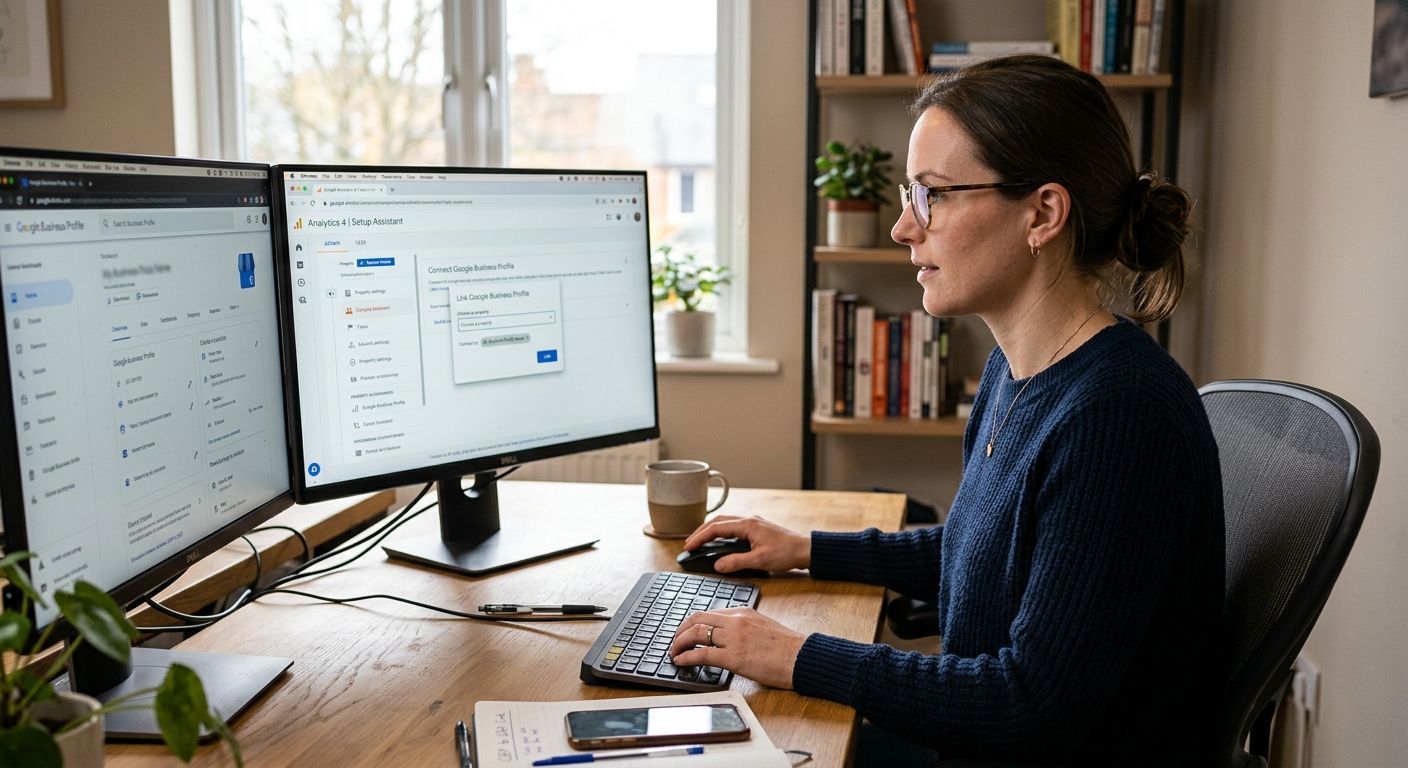
Illustration generated with AI for visual purposes. The interface shown is a conceptual representation and may differ from the current Google Analytics or Google Business Profile interface.
Why Connect Google Business Profile to GA4?
Many business owners only look at the basic statistics available inside Google Business Profile. While those insights are useful, connecting your profile with Google Analytics gives you access to more detailed reporting and allows you to analyse your business alongside the rest of your website’s performance.
This can help you:
- Better understand your local online presence.
- Monitor how customers interact with your business.
- Compare local performance with your website traffic.
- Identify opportunities to improve your digital marketing strategy.
Even if you’re just getting started with analytics, creating this connection is a good foundation for measuring your online growth.
Troubleshooting
If you can’t see the option to link your Business Profile, check the following:
- You’re using a Google Analytics 4 property rather than Universal Analytics.
- You’re signed in with the correct Google account.
- You have administrator access to both Google Analytics and your Business Profile.
- Your Google Business Profile has already been verified.
If everything looks correct but the option still isn’t available, it’s worth checking Google’s latest documentation, as features can vary depending on account permissions and regional availability.
Conclusion
Connecting Google Business Profile to Google Analytics 4 only takes a few minutes and is well worth doing if you want a clearer picture of your online presence. Once the connection is in place, you’ll be able to make more informed decisions based on real data rather than assumptions.
If you’d like help setting up Google Analytics 4, improving your local SEO or making better use of Google’s business tools, feel free to get in touch.
This post is also available in:



Leave a Reply
Want to join the discussion?Feel free to contribute!